Getting started
Create your account and sign in
Sign up, confirm your email, choose a password, and sign in with a password or an email link.
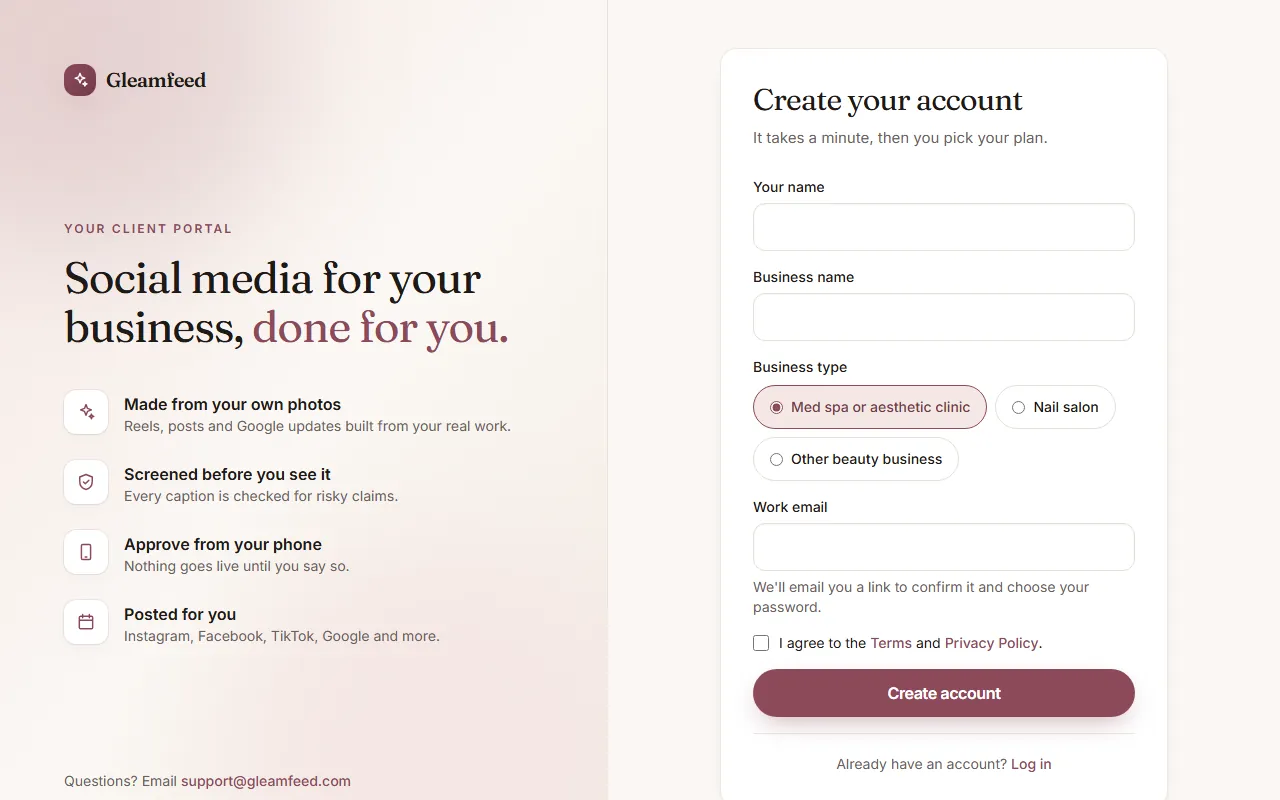
Sign up
- Go to Sign up and enter Your name, Business name, Business type and your Work email.
- Tick I agree to the Terms and Privacy Policy and click Create account. You don't choose a password yet.
- Open the email Finish creating your Gleamfeed account and click Confirm and choose a password. The link expires in 24 hours. Don't see it? Check your spam folder.
- Choose a password of at least 10 characters and click Save password and continue. You're signed in and your email is confirmed.
Good to know
If our team set up your account for you, you'll get an email inviting you to choose your password instead. That link works for 7 days.
Sign in
On Log in, enter your email and password. Prefer not to use a password? Click Email me a sign-in link instead. The link works once and expires after 15 minutes. You stay signed in on that device for 30 days.
Forgot your password?
Click Forgot password? on the Log in page and we'll email you a reset link. It expires after 30 minutes, and only the newest link works. After 10 wrong passwords in a row, password sign-in pauses for 15 minutes; you can still use a sign-in link.
Change your details
- Your password: Settings → Profile & password. Changing it signs you out on your other devices, and we email you to let you know.
- Your email or business name: email us at support@gleamfeed.com and we'll update it.
- Log out: at the bottom of the menu on a computer, or on the Settings page on your phone.
Still have a question?
Email us and a real person will help.